Last Updated: Mar 12, 2020
Learn how to create a fulfillment shipment, puchasing a shipping label and printing a packing slip from the Order List page in InfiPlex Inventory & Order Management System.
Create a Package and Get a Shipping Label
Before you start creating packages and purchasing shipping labels, make sure you have connected your EasyPost account using the Shipping Settings area. You should also set-up all of your package sizes using the Package Sizes tool and upload your SKUs and weights using the Product Upload Tool.
From the Order List page, to create a package and get a shipping label, follow these steps:
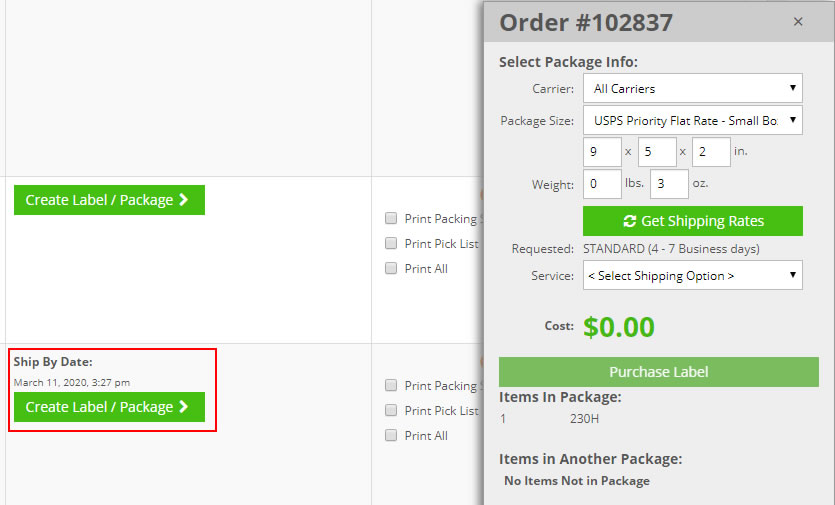
- 1) Click on the green Create Label/Package button:
This will open the Create Package Window where you can select your Carrier and Package Size in order to then view shipping rates to print a label. If the marketplace has included a ship by date it will be listed above the button.
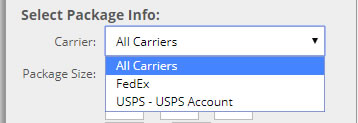
- 2) Select the Carrier:
You can select a specific carrier or all carriers if you have multiple carriers set-up. If you select All, you will be able to view rates from all of your carriers to choose the lowest cost shipping method.
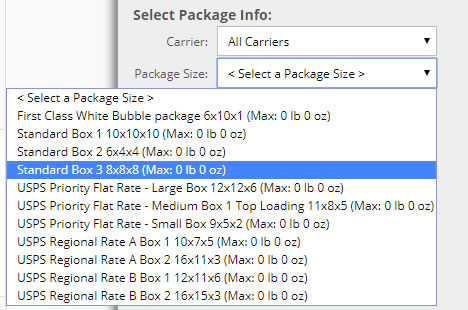
- 3) Select the Package Size:
Pre-loading your package sizes will make it quick and easy to set the length, width, and height of the package, which is required to get shipping rates.
- 4) Click the green Get Shipping Rates button:
This will cause the system to get the available methods and rates based on your inputs.

- 5) Select your Carrier and Method to purchase your label:
You will see all available methods to ship the package with the associated price for the label.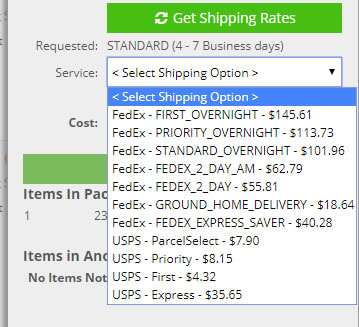
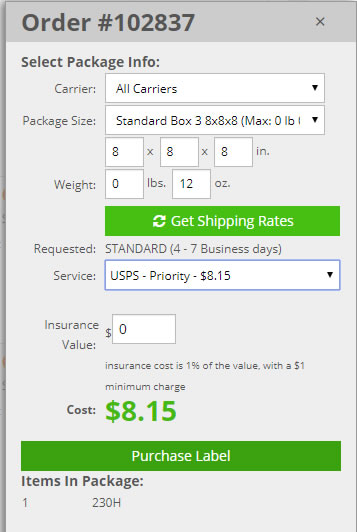
- 6) Click the Purchase Label button:
The label selection and cost will be displayed along with the option to purchase insurance for USPS shipments.
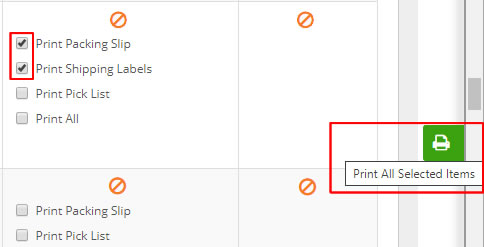
- 7) Select the Print Packing Slip and Shipping Labels options:
After you purchase the label, the label window will disappear and you will then be able to select the print options for that order. Check the print packing slip and print shipping labels options show. Then click the print icon on the right side of the page.
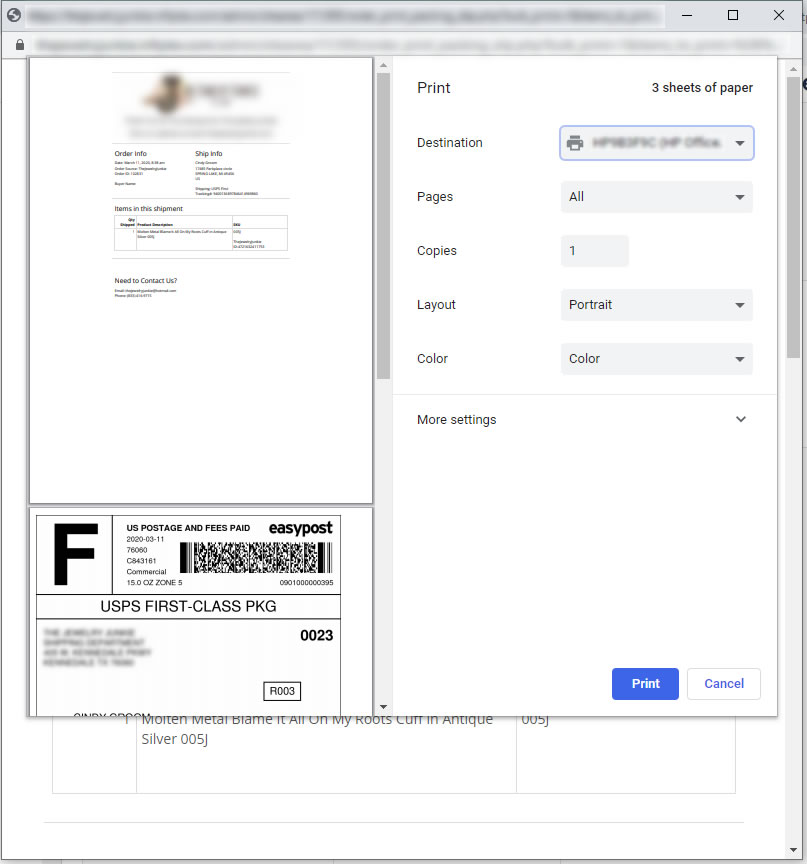
- 8) Print Your Packing Slip and Shipping Label:
A pop-up window will open up a print dialouge to start the printing process. Use the browser's print set-up to configure your printer to print the Packing Slip and/or label.
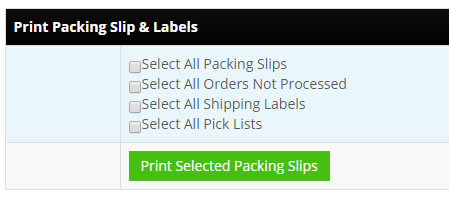
Bulk Printing
At the bottom of the Order List page you will find options for bulk printing Packing Lists, Packing Slips, and Shipping Labels. You can use the filters at the top of the page to filter your orders so you can print Pick Lists or a group of Packing Slips or Labels.