
Last Updated: Nov 07, 2024
The Product Upload tool for the OMS makes it easy to quickly load your SKUs and initial inventory into the OMS.
Product Upload Steps
- You can access the Product Upload page by clicking on the Tools menu option in the blue menu bar.
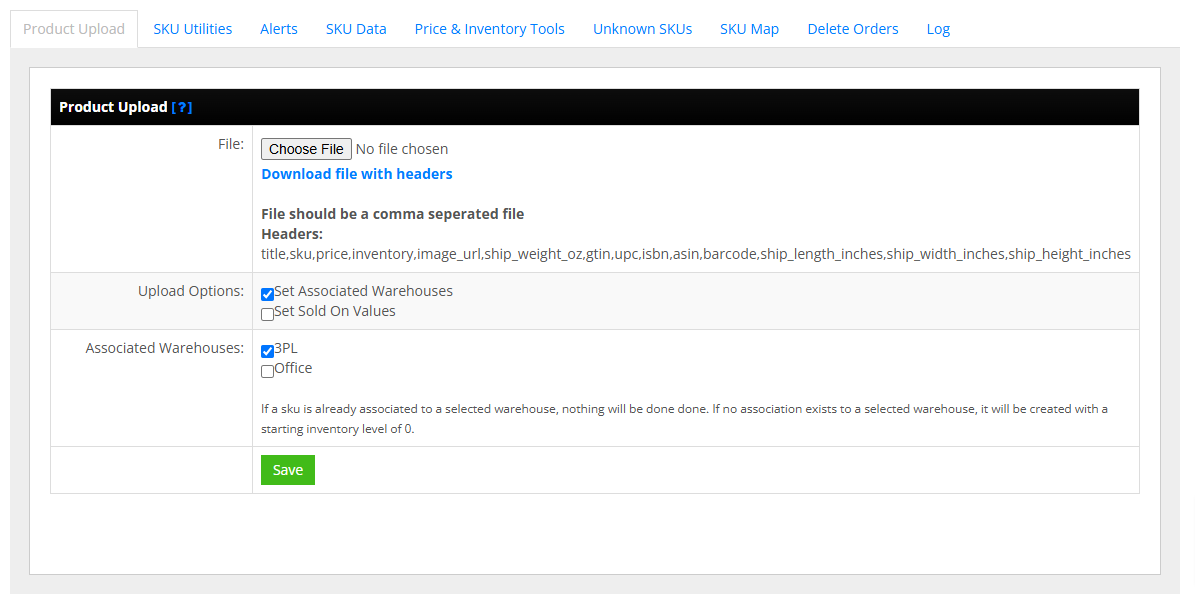
- Download the example csv file with headers so you can create your upload file. The file contains the following columns, all lower case:
- title
- sku
- price
- inventory
- image_url - must be a URL to an image. This is for display only in the OMS.
- ship_weight_oz
- gtin
- upc
- isbn
- asin
- barcode
- ship_length_inches
- ship_width_inches
- ship_height_inches
- Updating SKUs:
- If a SKU already exists it does NOT update price or inventory, it will only update title, ship_weight_oz, gtin, upc, isbn, asin, barcode, ship_length_inches, ship_width_inches, ship_height_inches
- Be sure to always include the data for these fields if you upload a file.
- Blank fields for these fields will result in no data for the fields
- It does NOT update price, inventory, or image
- Price and inventory should be updated using the Price & Inventory Tools under the Tools section
- Upload Options:
- Set Associated Warehouses
This will list the existing warehouses in your OMS in the Associated Warehouses row.
Check the warehouse that the new SKU should be associated to.
The inventory level you include in your file will be set for each selected warehouse, so only select one warehouse to set if the SKU has different inventory levels at each warehouse.
If you want the SKU set at multiple warehouses, use an initial inventory level of zero with your upload file and select all the warehouses. Then go back to the Inventory page or use the Price & Inventory file to quickly update all warehouses with the correct inventory. - Set Sold On Values
This will allow you to flag the sales channels you want the SKU associated to for pushing inventory levels.
Please note that you must have the sales channel integration configured already in order for this to work.
- Set Associated Warehouses
- After selecting your csv file and setting your options, click the Save button to start the upload.
Enable Products for Specific Marketplaces
By default, when you upload new products/SKUs, they are NOT associated to any marketplace unless you select the Set Sold On Values option above. You should maintain a SKU list file for each marketplace that you can use to quickly update InfiPlex with the SKUs that are sold on each connected marketplace. To do this, you can follow these steps:
- Go to the Sell On page and click the tab of the marketplace that will be show accross the top of that page.
- On the Sell On marketplace page, you will see a green button at the top named "Set SKU Sold On". Click that button to open the Set SKU Sold On pop-up window to manage your Sold On SKUs.