
Last Updated: June 23, 2023
InfiPlex Inventory & Order Management System (OMS) User Roles allows Main Admins the ability to limit users access within the OMS. Access can be limited to manage orders and/or inventory for specific warehouses.
User Roles for Managing Orders & Inventory
Below are the different roles currently availabe for set-up.
- Main Admin - Full Access:
Main Admin accounts will have full access to view and manage orders and inventory levels for all warehouses.
- Warehouse Admin - Warehouse Only Access
Warehouse Admin accounts can be given access to view and manage orders or inventory for their specific warehouse only.
Managing Roles
A regular user added to the system will by default be considered a Main Admin. To limit a user's access to a specific warehouse, follow the steps below.
- Add the User:
First add the user's account using the User application. The User account should include the "Admin" security group. By default, that security creates Main Admin account that would have full access to all of the OMS tools. Once the User Account is added, you can use the Users Settings tool in the OMS to limit the user's access. - Limit the User to a Specific Warehouse:
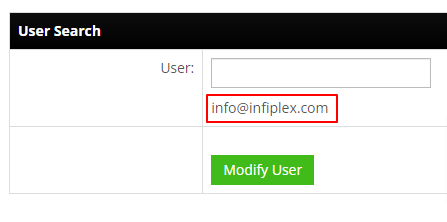
Go to the Settings > Users admin page and type the name or email of the user account you want to limit as a Warehouse Admin account. As you type, a grey selection box will appear. Click the name and email of the user you want to create limited access for.
Manage User Settings:- Manage User Tab:
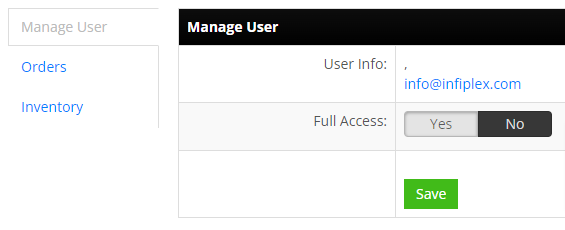
- Full Access: Yes or No
Yes - this gives makes the user a Main Admin and gives them full acess to everything in the OMS
No - Set this to NO to limit the user to sepcific warehouses for orders and/or inventory with the Orders and Inventory tabs
Set Full Access to NO in order to create a Warehouse Admin User.
- Full Access: Yes or No
- Orders Tab:
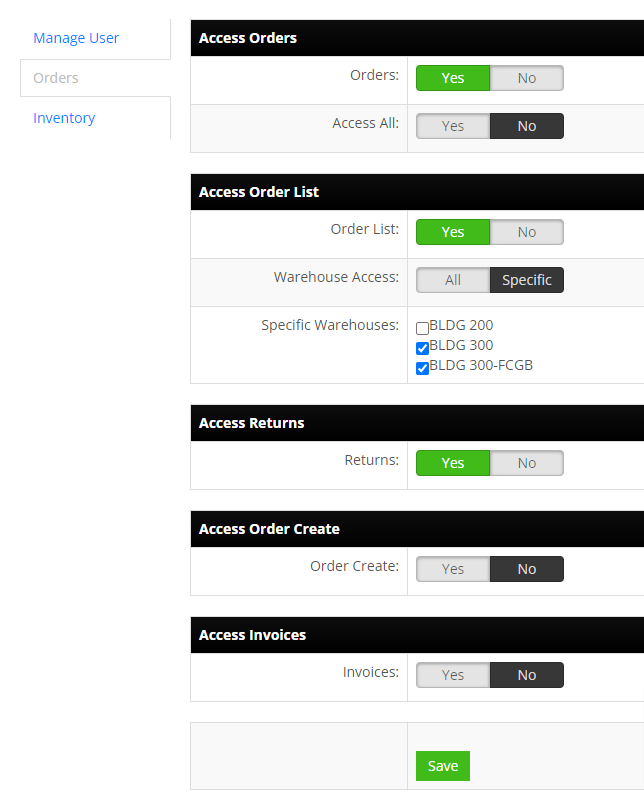
- Orders: Yes or No
Yes - user will have access to Order tools
No - user will not have access to Order tools, as long as Access All is also set to No - Access All: Yes or No
Yes - user will have access to all order tool pages regardless of Orders settings above
No - Set to NO to limit user's access with the other settings in the Orders tab - Order List: Yes or No
Yes - User will have access to the Order List page
No - User will not have access to the Order List page - Specific Warehouse Access:
Check the Warehouses user will have access to manage.
This will allow user to manage shipments for orders that are assocated to the selected warehouse. - Access Returns: Yes or No
Yes - User will have access to the Returns page
No - User will not have access to the Returns page - Access Order Create: Yes or No
Yes - User will have access to the Create Orders page
No - User will not have access to the Create Orders page - Access Invoices: Yes or No
Yes - User will have access to the Invoices page
No - User will not have access to the Invoices page
- Orders: Yes or No
- Inventory Tab:
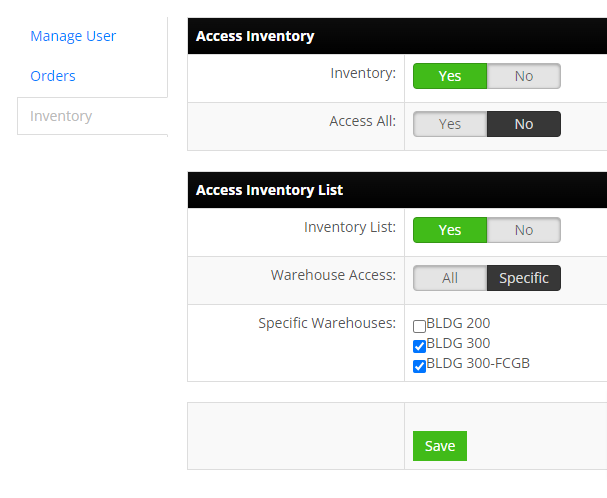
- Inventory: Yes or No
Yes - user will have access to Inventory tools
No - user will not have access to Inventory tools, as long as Access All is also set to No - Access All: Yes or No
Yes - user will have access to all Inventory tool pages regardless of Inventory settings above
No - Set to NO to limit user's access with the other settings in the Inventory tab - Inventory List: Yes or No
Yes - User will have access to the Inventory List page
No - User will not have access to the Inventory List page - Specific Warehouse Access:
Check the Warehouses user will have access to manage.
This will allow user to manage Inventory for SKUs that are assocated to the selected warehouse.
- Inventory: Yes or No
- Once a user is added with limited access, they will appear in the list on the Settings > Users page in the OMS.
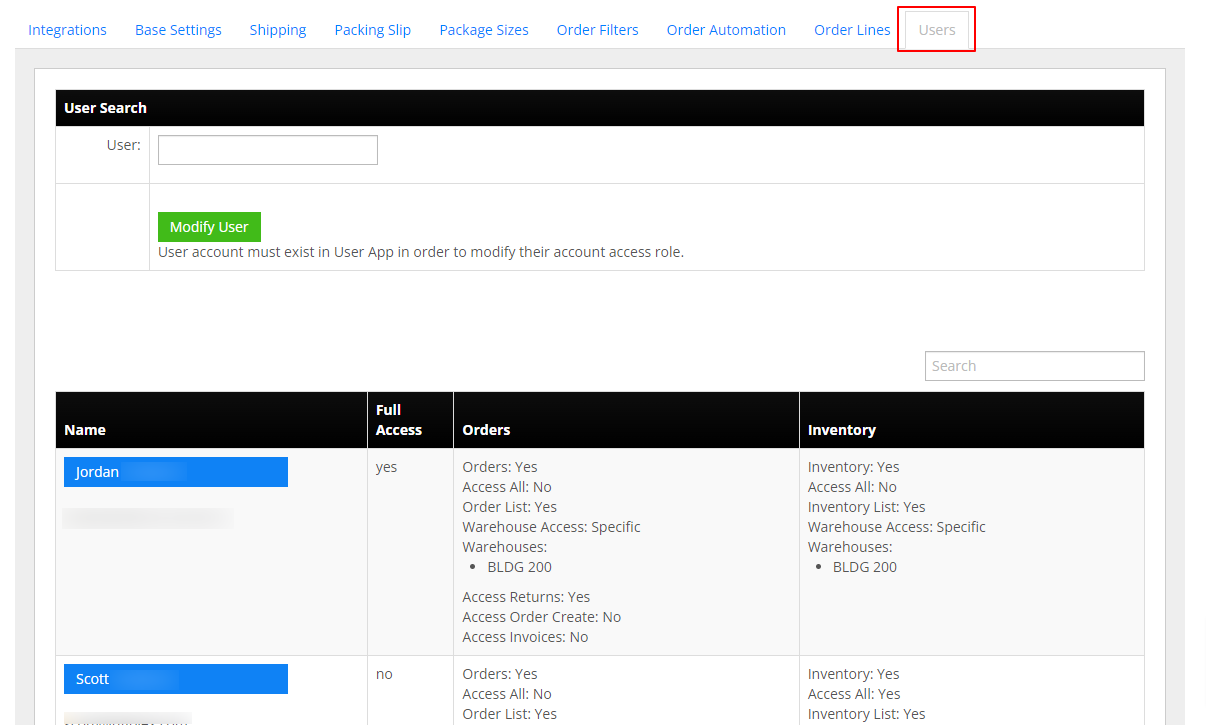
- Manage User Tab:
If you have any questions, please contact us.