
Last Updated: Oct 8, 2025
This document outlines how to set which SKUs are sold on each marketplace, which enables inventory updates for the associated SKUs.
InfiPlex OMS Set SKUs That Are Sold on Each Marketplace
The Sell On area in InfiPlex allows you to quickly update the SKUs that are being sold any connected marketplace. The Sold On SKUs are the ones that InfiPlex will send inventory updates to the selected marketplace. This does NOT effect or change the SKU listing on the marketplace, it only tells InfiPlex to send inventory updates for the selected SKUs. You can access the Sell On area from the main menu. Note that connected marketplaces or retail EDI connections must have inventory enabled in order for that marketplace to show in the Sell On area.
To assoicate a SKU to a marketplace is a 2 step process.
- Upload New Products
SKUs first need to be added to the OMS if they don't already exist. Go to the Tools > Product Upload tool to add new products to your OMS. The Product Upload tool is a .csv file that allows you to bulk add new products with an initial starting inventory. If you do not have any initial inventory, set inventory to 0 for the SKU.
Important Update:
Please note that the Product Upload tool now allows you to assign new SKUs to warehouses and marketplaces. This will enable you to complete Step 2 below using only the Product Upload tool, eliminating the need for the additional steps below. You can still use the Sell On marketplace pages to manage the list of SKUs set to send inventory, in case you have changes to your list of active SKUs for any marketplace.
- Enable Products for Specific Marketplaces
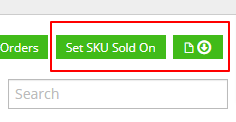
The Sell On page for each sales channel includes the ability to set the SKUs that are being sold on that sales channel. Click the "Set SKU Sold On" button at the top right of the page, above the search box.
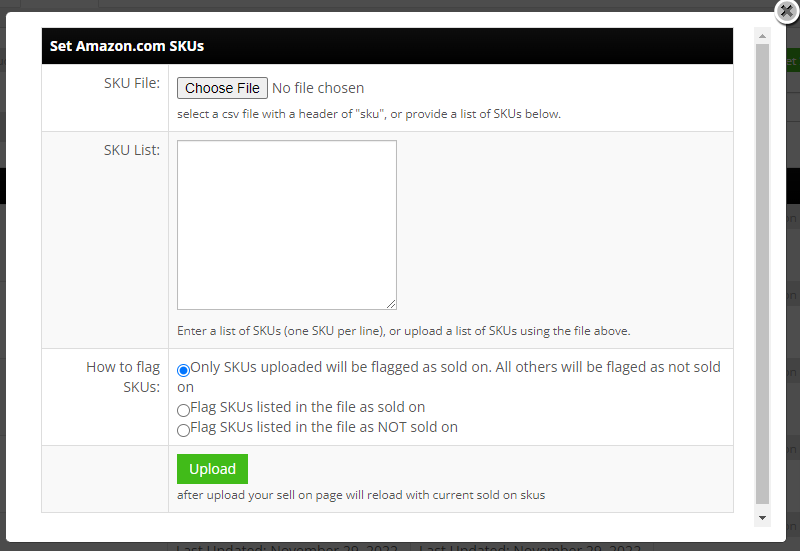
This will open a new pop-up window where you can upload a .csv file with your SKUs or you can copy a list of SKUs into a text area. The "How to flag SKUs" row defines how the system saves these SKUs.- Only SKUs uploaded will be flagged as sold on. All others will be flaged as not sold on
This option requires you to upload your full list, as it will remove any other SKUs not in your list. - Flag SKUs listed in the file as sold on
This option will ADD the selected SKUs to your existing list of SKUs - Flag SKUs listed in the file as NOT sold on
This option will DELETE the selected SKUs from your existing list of SKUs
- Only SKUs uploaded will be flagged as sold on. All others will be flaged as not sold on
- Click the Sell On "Queue Changes" button
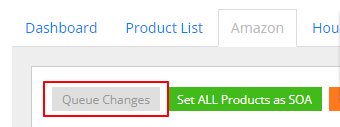
At the top left of the marketplace's Sell On page there will be a grey button that says "Queue Changes". This will ensure that any new SKUs that you just added to the marketplace will have the current system inventory pushed to the marketplace since it has never been pushed before. The Queue Changes function only queue's up inventory updates for SKUs where there is a difference between the System inventory level and the marketplace inventory level. The marketplace inventory column displays the most recent marketplace inventory level that was successfully pushed. If the "Lat Updated:" time in the Marketplace column shows "N/A", that means it has either never been pushed or there is an error when trying to push that SKU to the marketplace. You can check the Tools > Log page to review any error logs for pushing inventory.
Download Your Current Acitve SKUs for a Marketplace
The download button is located to the right of the "Set SKU Sold On" button on each Sell On marketplace page. See the image above. Click on that button to download a list of your SKUs currently set as Sold On the marketplace. The download is a .csv file and will contain the SKU and the Product Name for reference.
Auto Add Unknown SKUs
You can use the Unknown SKU settings to have the system automatically add new SKUs as they come through on orders from your marketplaces. This Knowledge Base article outlines how to set-up and manage Unknown SKUs.
Update Your Inventory Levels
You can use the tools in the Inventory area to update your inventory levels. You can quickly update individual SKUs on the Inventory page from the main menu or you can upload all of your inventory levels using the Tools > Price & Inventory Tools using a .csv file. The Managing Inventory Knowledge Base article outlines the different options available for managing SKU inventory.