
Last Updated: Dec 12, 2023
InfiPlex OMS offers several ways to manage inventory for your SKUs including manual updates using our Inventory tool, file updates using our.csv file upload, FTP automatic updates connecting to a posted inventory file, or connections to your existing webstore or other ERP systems.
Manual Updates Using the Inventory Tool
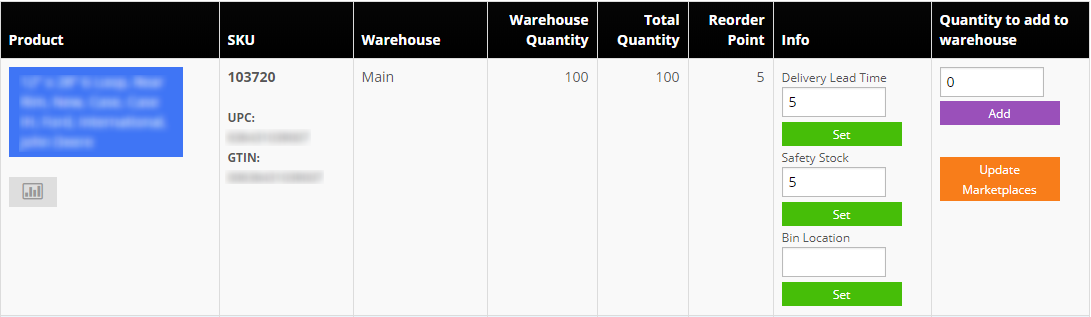
The OMS Inventory Tool makes it easy to quickly update the inventory, lead time, safety stock and bin location of any SKU. The lead time setting is used by the Restock settings to send you restock alerts on your SKUs. The restock alerts are based on actual sales over time.
Mass Inventory .csv File Update
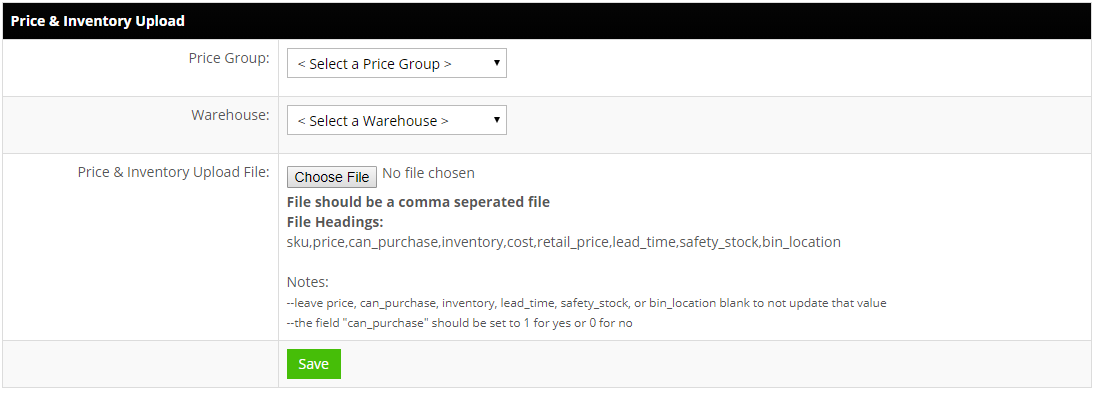
InfiPlex OMS also allows you to update inventory levels using a .csv file upload on the Tools > Price & Inventory Tools page. The Price & Inventory file has the following headings to the .csv file:
- sku
- price
- can_purchase
- inventory
- cost
- retail_price
- lead_time
- safety_stock
- bin_location
- product_name
FTP Inventory Updates
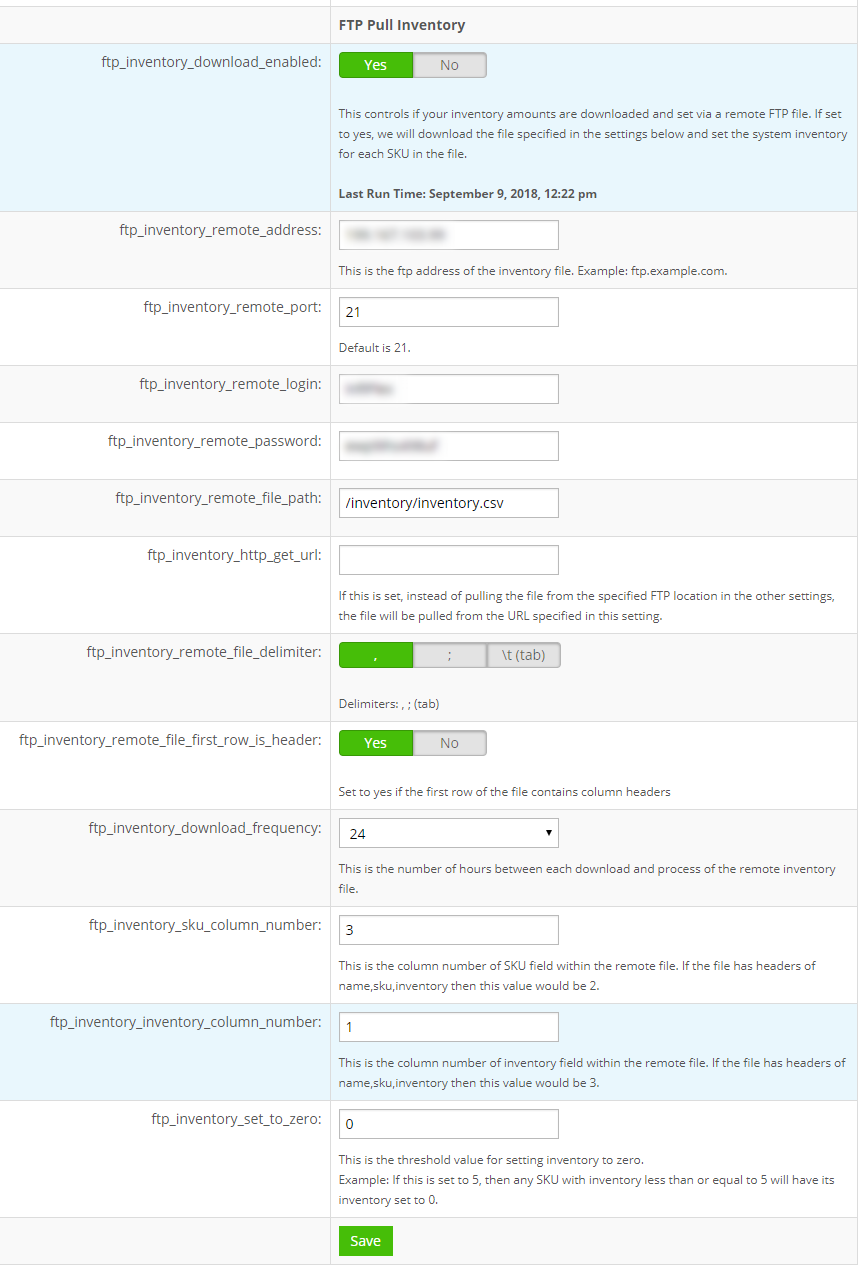
The FTP Pull Inventory settings allow you to establish an automated connection to pull inventory from a file on the internet. You can schedule inventory pulls every 6 - 48 hours to fit your business process.
Other Inventory Connections
InfiPlex OMS has other settings for some types of webstore connections to allow your inventory levels to be pulled from your webstore. We can also work with you to establish a custom connection to an internal ERP system. Please contact us for more information on custom inventory connections.
Downloading Current Inventory
You can download current inventory by going to the Tools > Price & Inventory Tools page. Under the Price & Inventory Download heading, use the download form to select the following:
- Price Group: Standard
- Warehouse: select one of your defined warehouses
- Sell On Filter: select < All > or one of your connected marketplaces to filter the SKUs selected
The download file is a .csv that uses the same format used to upload inventory levels as shown above.
Downloading Historical Inventory
You can download historical inventory levels from a specific date and time by going to the Tools > Price & Inventory Tools page. Under the Historical Inventory Download heading, use the download form to select the specific date and time you would like to see. The file will include the following columns:
- sku
- product_name
- total_inventory
Note that the file will not show the time chosen, so you should update the file name with historical date chosen.